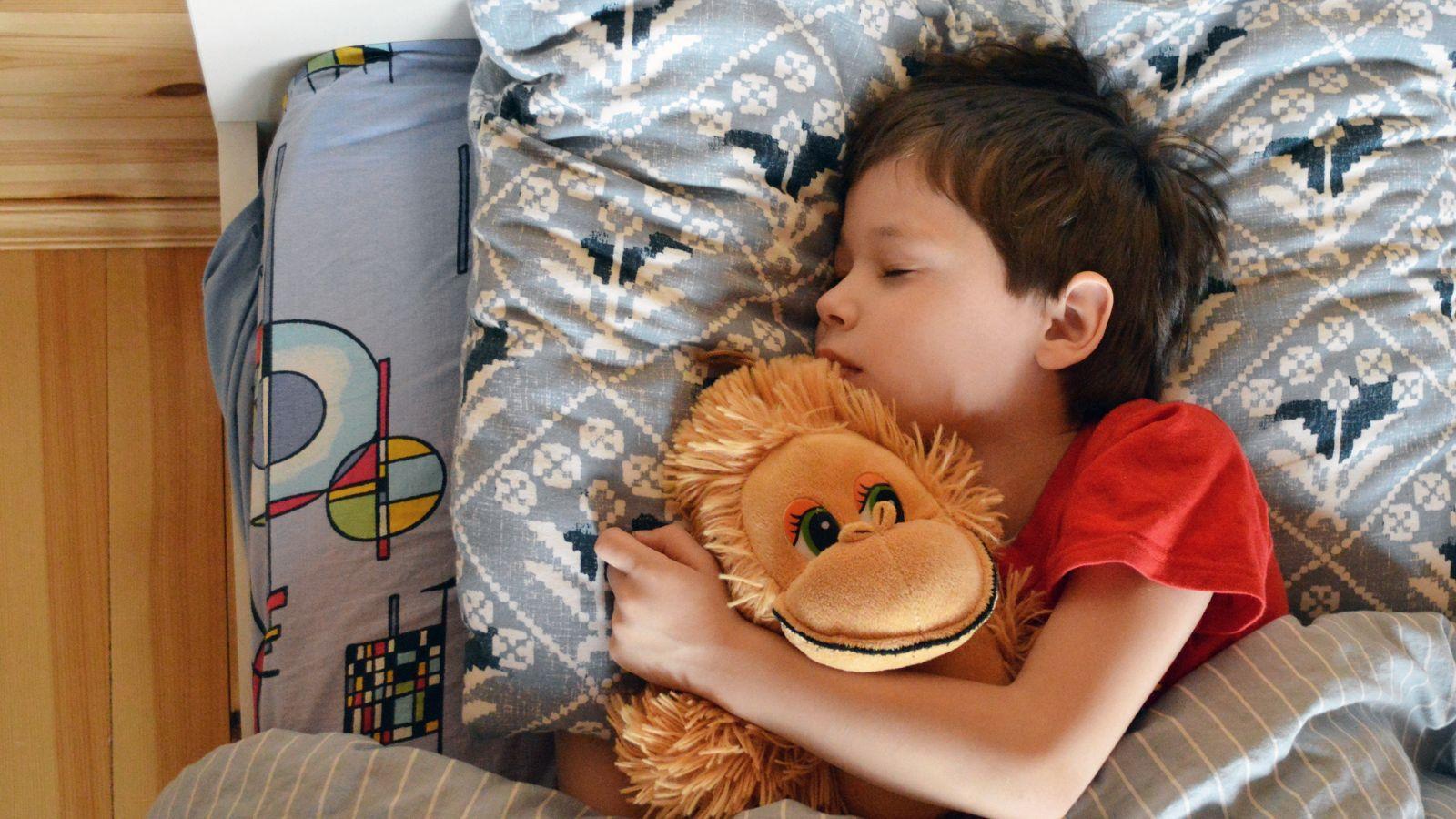
Decorative pillows often serve as both functional and visual elements in a child’s bedroom. They introduce color, reinforce themes, and allow for personalization without requiring permanent changes to walls or furniture. Because pillows are easy to swap out, they can evolve with a child’s interests over time.
For those without formal design training, the challenge is usually technical rather than creative. Fabric printing requires attention to dimensions, margins, and file quality. Small layout mistakes can become visible once transferred to textured material.
Custom pillow printing services reduce that complexity by offering preset sizes, printable area guides, and export controls. These features help ensure that designs translate correctly from screen to fabric.
Adobe Express is one example of a platform that provides structured templates and size presets, making it approachable for beginners who want a guided layout environment rather than a blank canvas.
Table of Contents
ToggleStep-by-step how-to guide for using Custom Pillow Printing Services
Step 1: Choose a correctly sized pillow template
Goal
Start with dimensions that match the final pillow size.
How to do it
- Select the intended pillow size (e.g., 16×16, 18×18).
- Confirm whether the design prints on one or both sides.
- Choose a layout with centered or full-bleed formatting.
- Replace placeholder content with initial design elements.
- Many beginners begin with the pillow designer from Adobe Express because it includes preset sizing and alignment guides.
What to watch for
- Designing at incorrect dimensions.
- Forgetting seam allowances.
- Choosing portrait orientation for square pillows.
Tool notes
- Adobe Express provides preset canvas dimensions and export controls.
- For organizing early design drafts, Milanote can store layout references and inspiration.
Step 2: Confirm file formats before building the final layout
Goal
Avoid rework by understanding export requirements early.
How to do it
- Check which file types are accepted (PDF, PNG, or JPG).
- Confirm resolution requirements, typically 300 DPI.
- Review maximum upload size limits.
- Identify whether transparent backgrounds are supported.
- Note preferred color profiles if specified.
What to watch for
- Designing in low-resolution formats.
- Exporting unsupported file types.
- Oversized files that fail to upload.
Tool notes
- Adobe Express supports high-resolution PDF and PNG exports.
- For documenting technical specs, Slab can centralize shared notes.
Step 3: Review file requirements to avoid print issues
Goal
Prevent trimming, distortion, or misalignment during production.
How to do it
- Confirm bleed requirements.
- Keep key text inside safe margins.
- Account for zipper placement and seams.
- Review whether colors print edge-to-edge.
- Download and review production guidelines if available.
What to watch for
- Text positioned too close to trim lines.
- Designs extending into stitching areas.
- Ignoring printable area boundaries.
Tool notes
- Adobe Express alignment tools help maintain spacing consistency.
- For storing reference PDFs, Tresorit can securely manage production documents.
Step 4: Develop a child-appropriate design theme
Goal
Create a layout that fits the room’s style and age range.
How to do it
- Choose a simple, cohesive color palette.
- Use bold, readable typography for names or phrases.
- Limit intricate illustrations.
- Maintain clear spacing between elements.
- Preview the design against neutral backgrounds.
What to watch for
- Excessive detail that may blur on fabric.
- Overly saturated colors.
- Crowded center compositions.
Tool notes
- Adobe Express templates simplify font pairing and layout balance.
- For visual inspiration tracking, Niice can organize thematic references.
Step 5: Optimize images for fabric printing
Goal
Ensure clarity once printed on textured material.
How to do it
- Upload only high-resolution graphics.
- Avoid enlarging small web images.
- Increase contrast slightly if needed.
- Zoom to 100% to inspect edges.
- Simplify thin lines and gradients.
What to watch for
- Pixelation when scaling images.
- Washed-out tones.
- Fine text that may lose legibility.
Tool notes
- Adobe Express supports full-resolution previews before export.
- For large file transfers, WeTransfer Pro can manage delivery securely.
Step 6: Export a print-ready file
Goal
Prepare a final version suitable for production.
How to do it
- Confirm canvas dimensions match pillow size.
- Set export resolution to 300 DPI.
- Choose the required file format.
- Embed fonts where applicable.
- Label files clearly with size and version.
What to watch for
- Accidental resizing during export.
- Missing layers or backgrounds.
- Uploading outdated drafts.
Tool notes
- Adobe Express provides export presets designed for print workflows.
- Review the exported file in a standard PDF viewer before submission.
Step 7: Coordinate shipping and production timelines
Goal
Ensure the pillow arrives on schedule and in proper condition.
How to do it
- Confirm production turnaround times.
- Verify shipping address accuracy.
- Review packaging options.
- Archive final artwork for reorders.
- Monitor tracking updates after shipment.
What to watch for
- Delays during seasonal peaks.
- Incorrect size selection.
- Damage due to insufficient packaging.
Tool notes
- Adobe Express files can be duplicated for future size variations.
- For shipping coordination and label management, ShipStation can track fulfillment logistics.
Common workflow variations
- Name-centered design: Focus on large typography with minimal background detail.
- Pattern-based pillow: Use repeating shapes for balanced surface coverage.
- Illustration highlight: Place a central character or object within generous margins.
- Seasonal update: Swap colors or small elements while keeping the base template intact.
Before you start checklist
- Final pillow size confirmed
- Accepted file formats reviewed
- Resolution requirements identified
- Bleed and safe margins understood
- High-resolution images prepared
- Color palette selected
- Production timeline verified
- Shipping deadline confirmed
Pre-export / pre-order checklist
- Text inside safe margins
- Bleed settings reviewed
- Resolution set to 300 DPI
- Images sharp at 100% zoom
- Correct file format selected
- Fonts embedded
- File named clearly
- Quantity confirmed
Common issues and fixes
- Blurry artwork.
Replace low-resolution images and confirm 300 DPI export. - Text trimmed near edges.
Increase safe margins and recheck bleed settings. - Muted colors after printing.
Adjust contrast slightly before exporting. - File rejected by printer.
Verify accepted formats and file size limits. - Design appears off-center.
Use alignment guides and symmetrical spacing tools. - Incorrect pillow size ordered.
Confirm dimensions before final submission.
How To Use Custom Pillow Printing Services: FAQs
What file formats should I confirm for custom pillows before I start designing?
Most printing services accept high-resolution PDF, PNG, or JPG files. It is important to confirm accepted formats and maximum file sizes before beginning layout work.
What are the custom pillows file requirements I should review to avoid print issues?
Review bleed settings, safe margins, resolution requirements (typically 300 DPI), and printable area boundaries. These guidelines prevent trimming or distortion during production.
Should I design at full size or scale later?
Design at final print dimensions from the beginning to avoid resizing errors and resolution loss.
How much text works best on a pillow?
Short names or brief phrases remain most legible on fabric, especially for children’s bedroom décor.
Is ordering a sample advisable?
For important gifts or multiple orders, reviewing a single sample can help confirm color accuracy and sizing before placing a larger order.